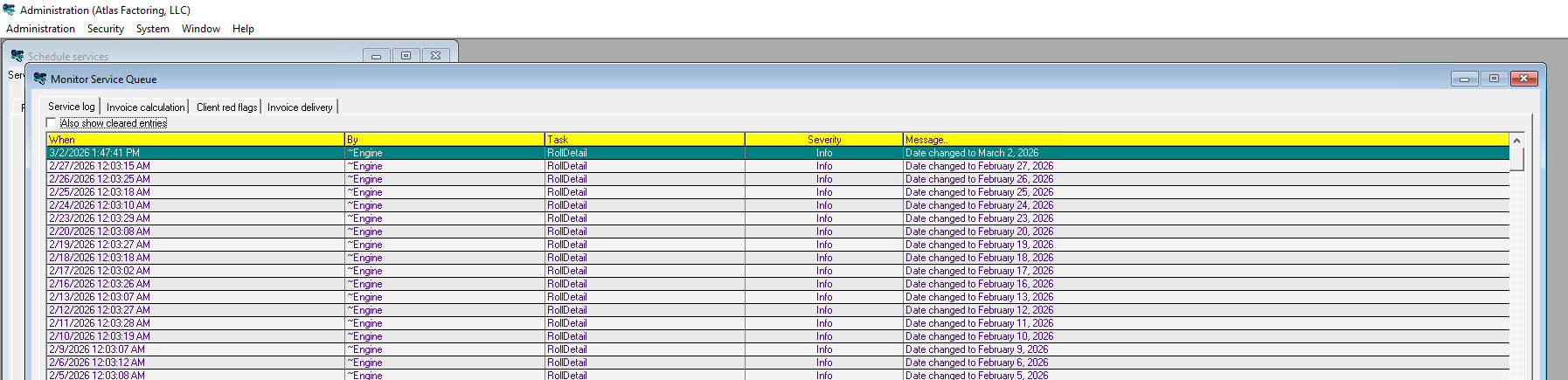
Sometimes when the open period is not advanced for the next month, the roll over date can fail. As seen below. To fix follow the instructions after you have closed the month.
Log in to Cadence, open Admin Module > System Tab > Schedule CLMS Task Prosessor
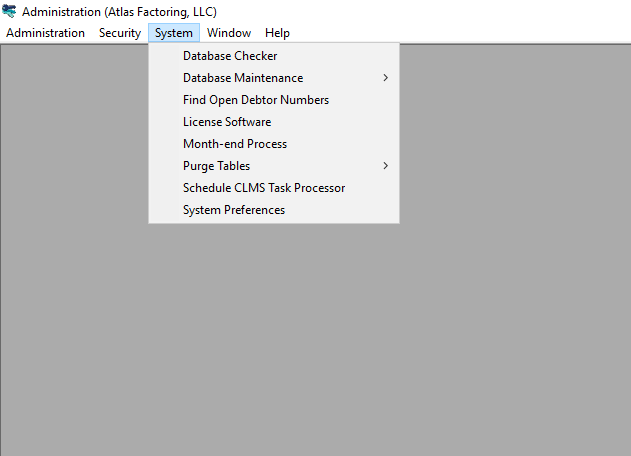
1) If you already have a date roll template, select it from the Service Template dropdown at the top of the screen
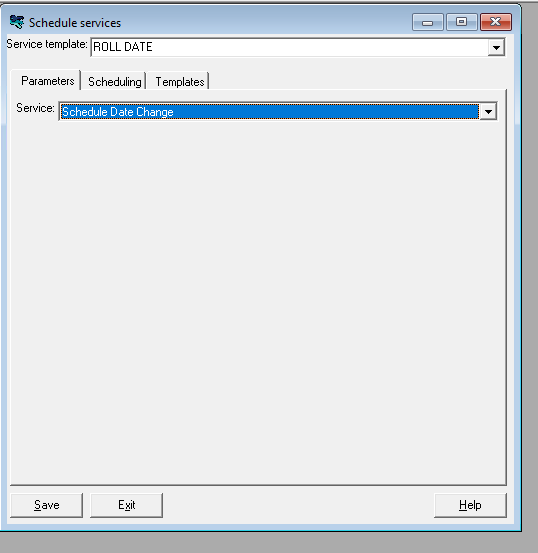
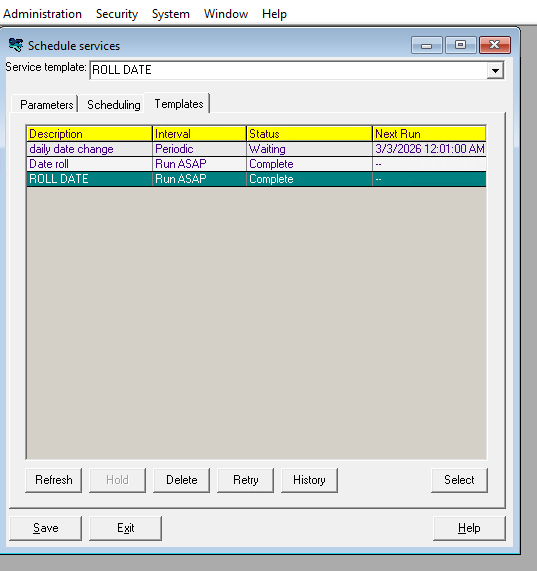
2) If you do not already have a date roll template you will need to create one.
In the second dropdown labeled Service, select Schedule Date Change. Then go up to the top dropdown labeled Service Tempalte and type in Date Roll (or whatever you choose to label it as), Click Save at the bottom
Next go to the Scheduling Tab and select Run Once As Soon As Possible > Select today's date from the calendar that pops up > Click Save at the bottom of the screen. You will be able to see the template tab shows the status of what you just ran.
Go to Administration -> Monitor Service Queue and confirm that this task goes through- log out and back in and your date should be updated.
Was this article helpful?
That’s Great!
Thank you for your feedback
Sorry! We couldn't be helpful
Thank you for your feedback
Feedback sent
We appreciate your effort and will try to fix the article